GENERATE NETWORK TRAFFIC IN SIMULATION MODE
Part 1: Generate Network Traffic in Simulation Mode
Step 1: Generate traffic to populate Address Resolution Protocol (ARP) tables.
- Click MultiServer and click the Desktop tab > Command Prompt.
- Enter the ping 192.168.1.255 command. This will take a few seconds as every device on the network responds to MultiServer.
- Close the MultiServer window.
Step 2: Generate web (HTTP) traffic.
- Switch to Simulation mode.
- Click HTTP Client and click the Desktop tab > Web Browser.
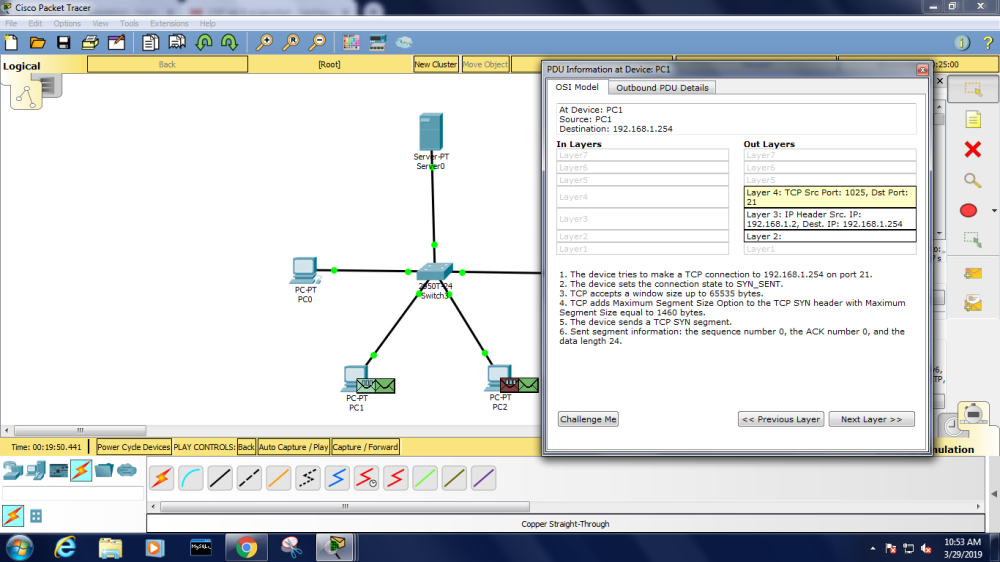
- In the URL field, enter 192.168.1.254 and click Go. Envelopes (PDUs) will appear in the simulation window.
- Minimize, but do not close, the HTTP Client configuration window.
Step 3: Generate FTP traffic.
- Click FTP Client and click the Desktop tab > Command Prompt.
- Enter the ftp 192.168.1.254 command. PDUs will appear in the simulation window.
- Minimize, but do not close, the FTP Client configuration window.
Step 4: Generate DNS traffic.
- Click DNS Client and click the Desktop tab > Command Prompt.
- Enter the nslookup multiserver.pt.ptu command. A PDU will appear in the simulation window.
- Minimize, but do not close, the DNS Client configuration window.
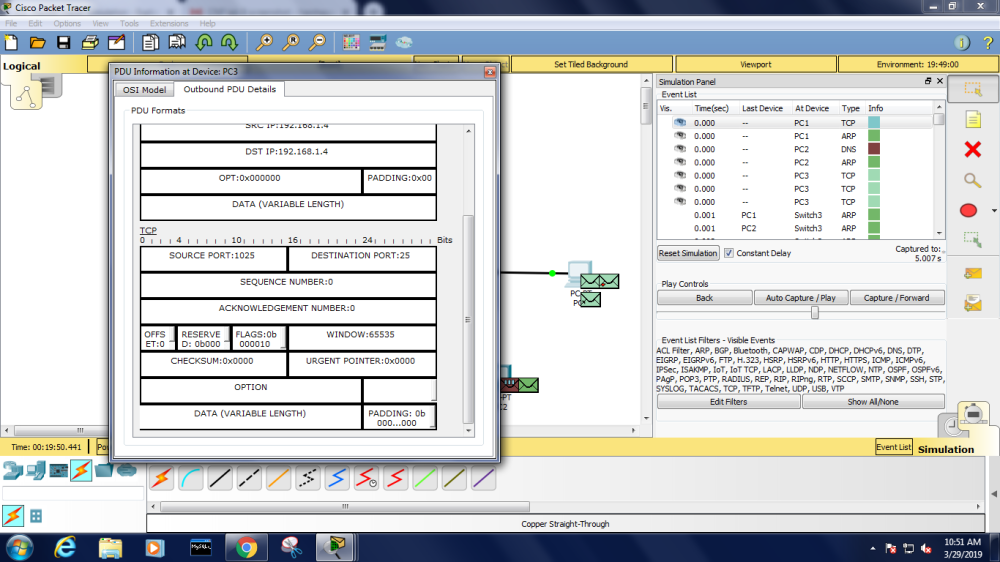
Step 5: Generate Email traffic.
- Click E-Mail Client and click the Desktop tab > E Mail tool.
- Click Compose and enter the following information:
- 1) To: user@multiserver.pt.ptu
- 2) Subject: Personalize the subject line
- 3) E-Mail Body: Personalize the Email
- Click Send.
- Minimize, but do not close, the E-Mail Client configuration window.
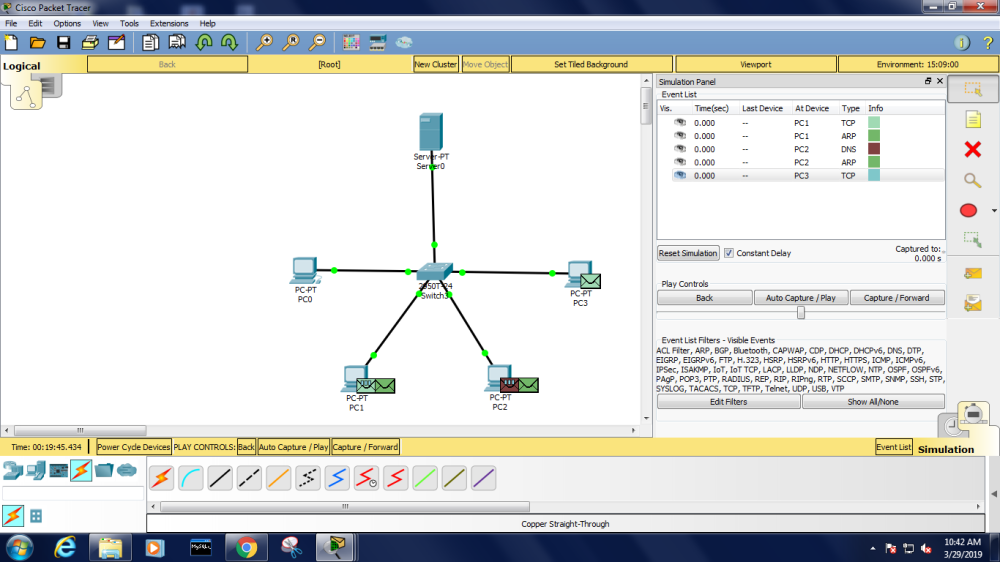
Step 6: Verify that the traffic is generated and ready for simulation.
Every client computer should have PDUs listed in the Simulation Panel.
 Computer Networking